asExplorer
The file explorer Windows users miss on the Mac. The familiar Explorer layout, a preview pane and the Windows 11 right-click menu, while respecting macOS: Finder shortcuts, Trash and Quick Look.
Free · Version 0.2.9 · macOS 12+, Windows 10/11, Linux x64 · What's new
Everything you know from Explorer
Built for people who switched to the Mac but still think in Explorer — and it runs on Windows and Linux too.
The Explorer layout
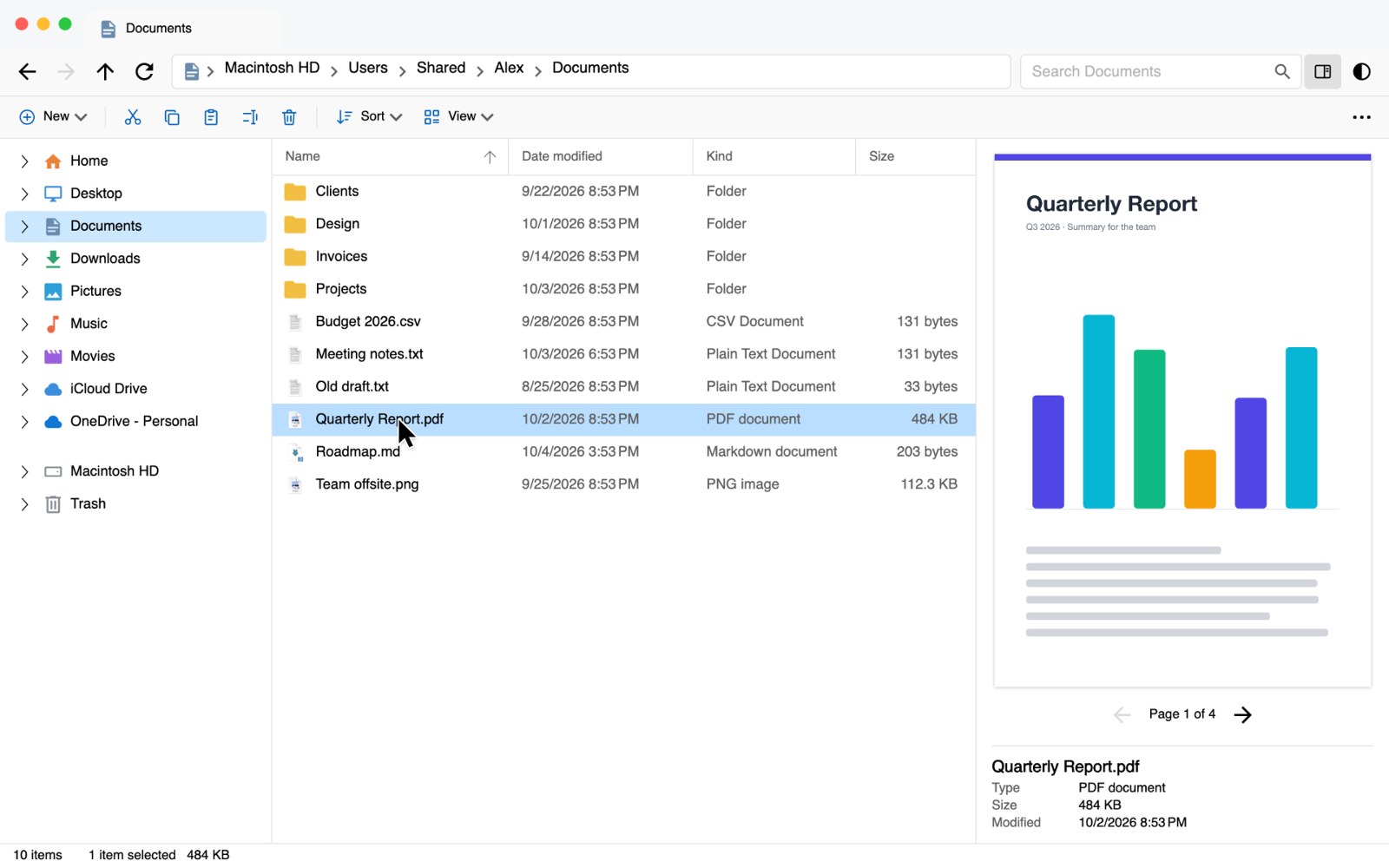
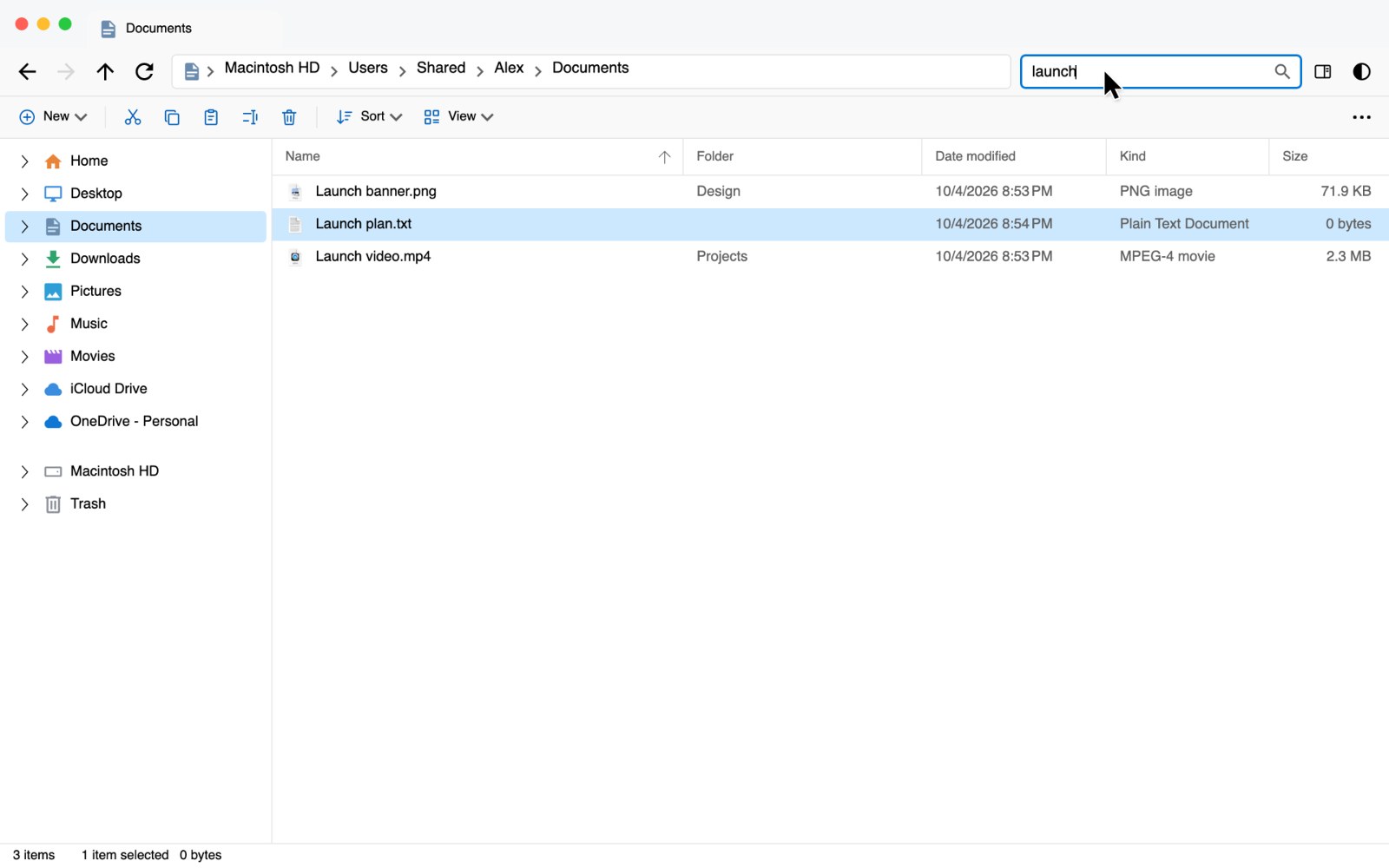
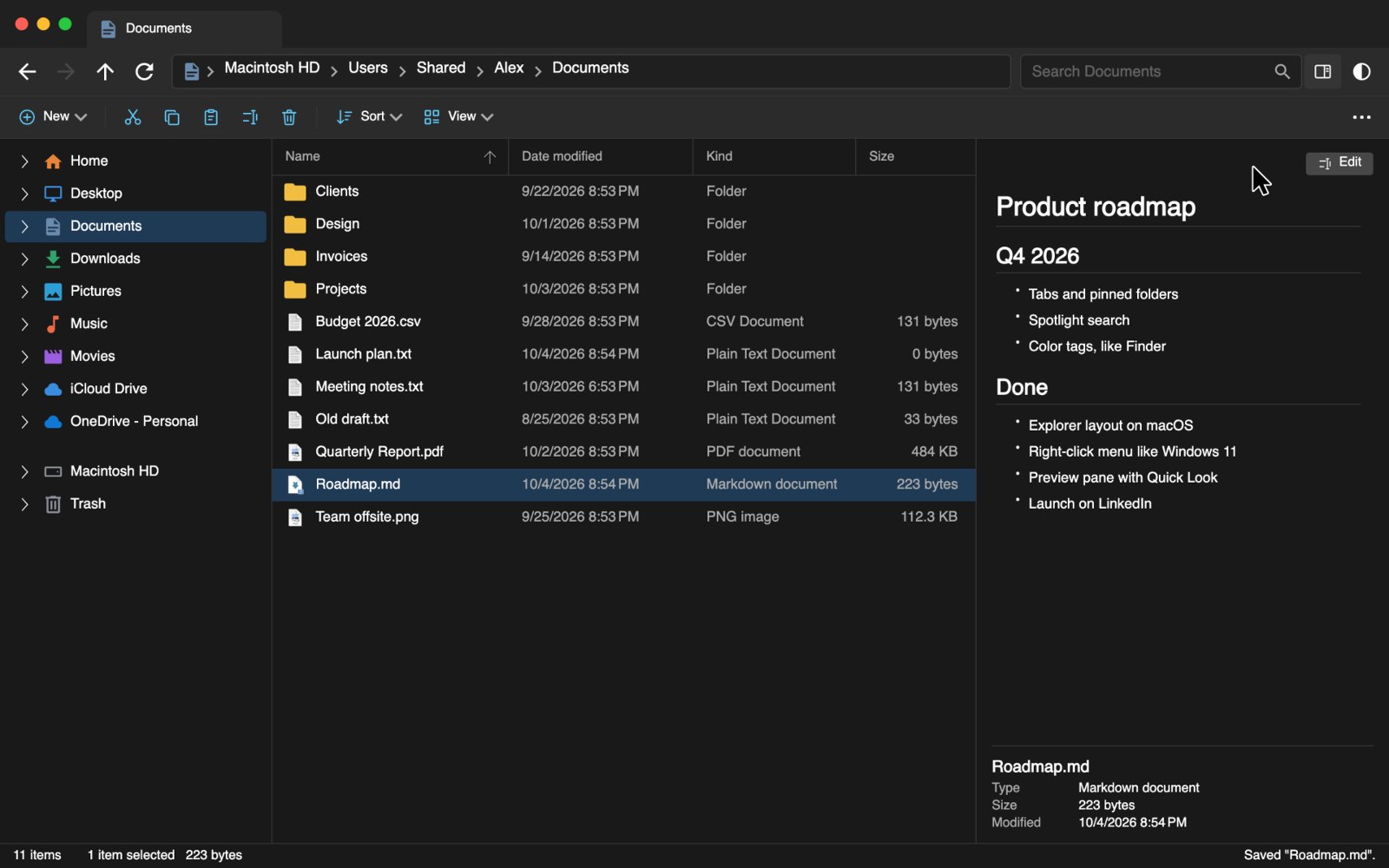
Navigation pane with your folders, cloud folders and drives, a breadcrumb address bar you can type into, the Windows 11 command bar, details and icon views with thumbnails, and sorting remembered per folder.
Preview pane
See a file without opening it: PDF, Word, Excel, PowerPoint, images, Markdown, CSV, JSON, ZIP, text and code, audio and video. On the Mac, anything Quick Look can show.
Tabs
⌘T or Ctrl+T, ⌘ / Ctrl + double-click or a middle-click on a folder. Drag tabs to reorder them, into another window or out into a window of their own, and drop files on a tab to put them in its folder.
Color tags
Finder's seven colors on the Mac, Windows and Linux: from the right-click menu or ⌃⌘1–7, shown after the names, and every tagged file one click away in the navigation pane. On the Mac they are Finder's own tags.
Quick Look with Space
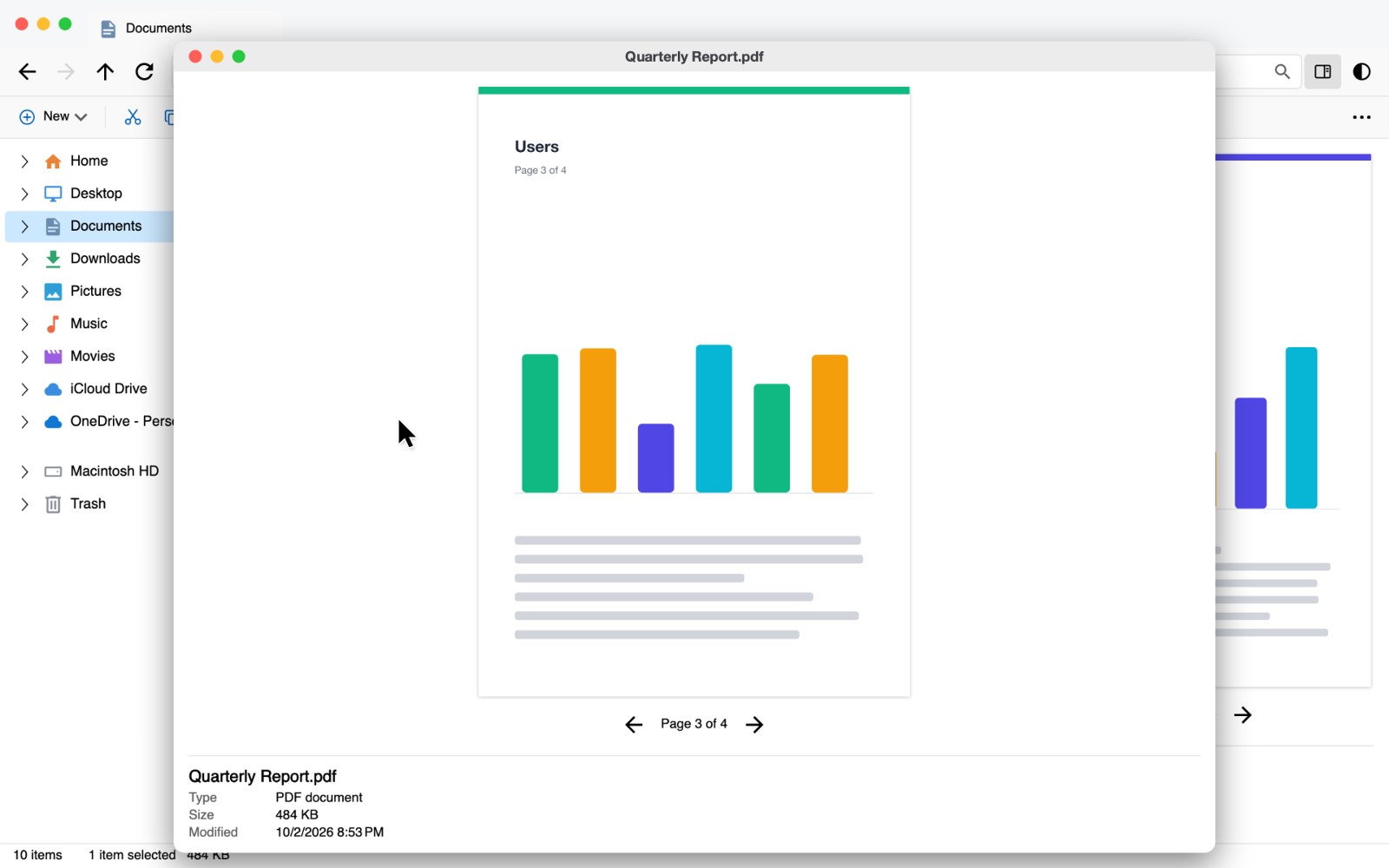
Press Space for a large preview. Arrow keys turn pages of PDFs and documents, or move to the next file.
Windows 11 right-click menu
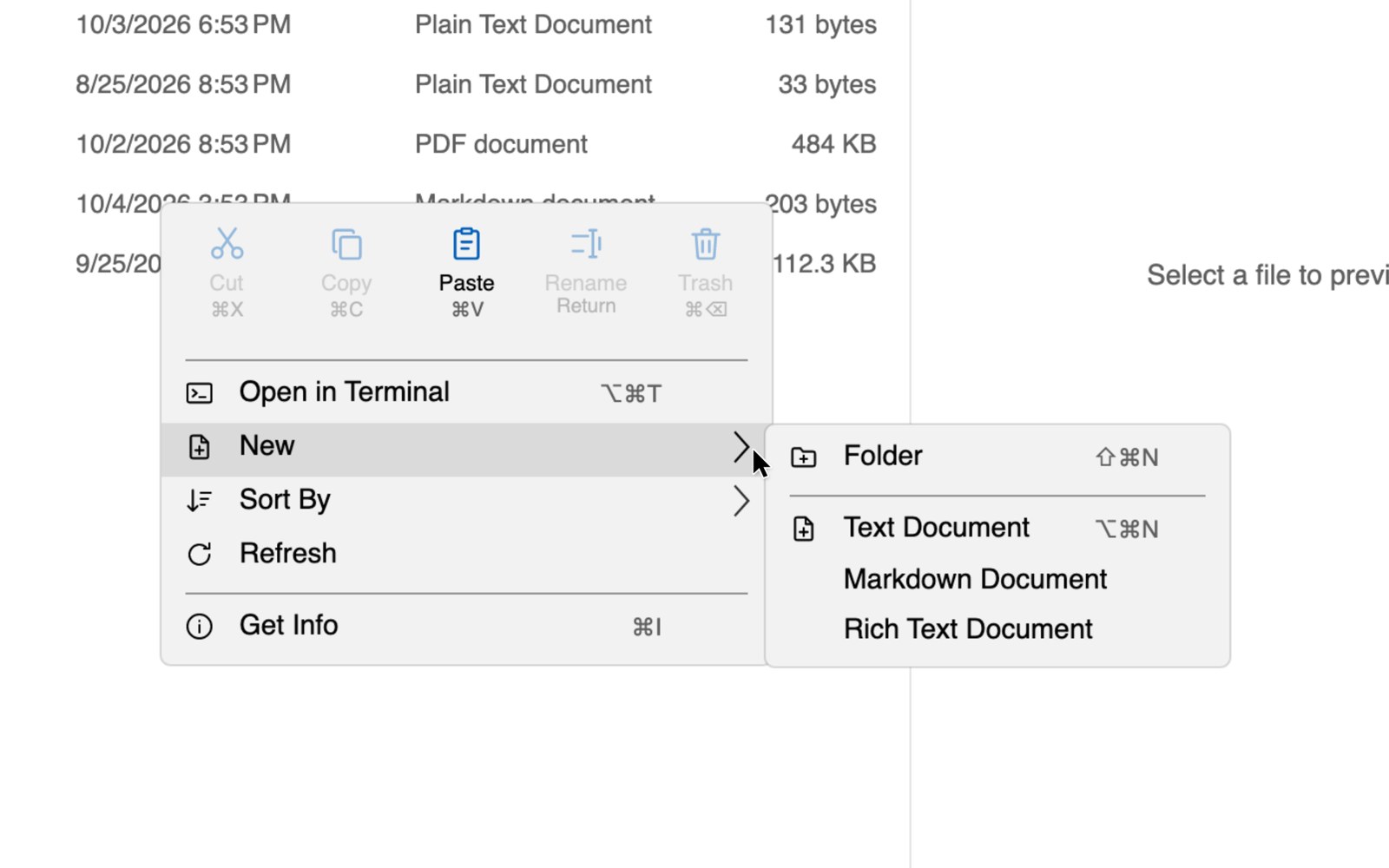
Cut, Copy, Paste, Rename and Delete as tiles, then Open, Open with (apps with their icons, or another app just once or always), New folder or document, Compress, Open in Terminal and Get Info.
Search into subfolders
Matches in the open folder at once, then from its subfolders as they are found. Case and accents don't matter, and * and ? work as in Explorer.
Cloud folders and Trash
iCloud Drive, OneDrive, Google Drive and Dropbox in the navigation pane, with their connection state. The Trash or Recycle Bin is there too: put items back, delete them for good, or empty it.
Zip and unzip
Compress files to a ZIP. Double-click a ZIP to extract it like Archive Utility, or look inside in the preview first.
Undo everything
Copy, move, rename, new folder, zip and unzip, and delete: items go to the Trash or Recycle Bin, and Undo puts them back.
Edit notes in place
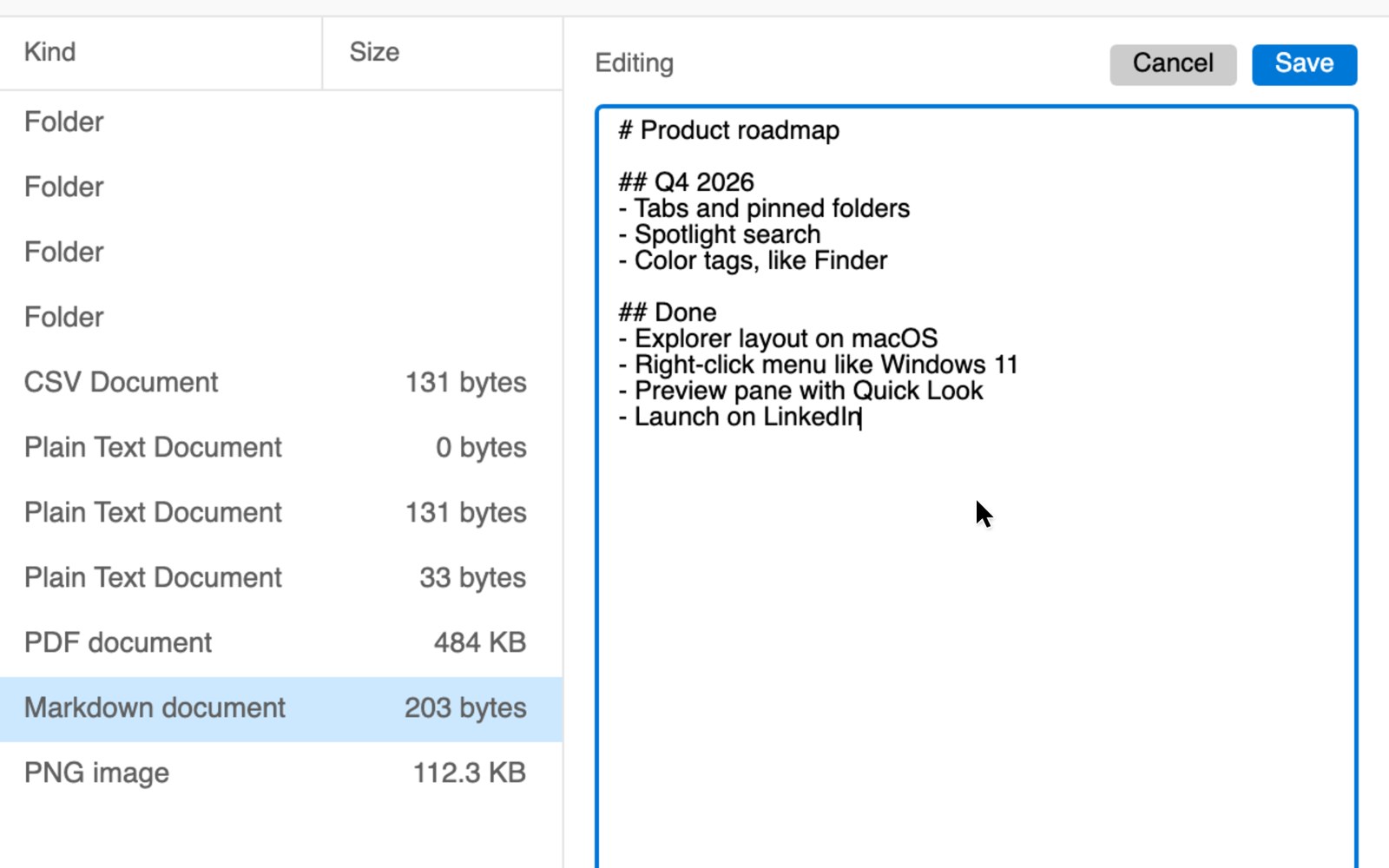
Click into a text or Markdown file in the preview to edit it right there. Saves when you move on.
Your platform's keys and mouse
⌘C ⌘V ⌘⌫ ⌘I on the Mac, Ctrl+C Ctrl+V Delete Alt+Enter on Windows. Back and forward mouse buttons, middle-click for a new window, a selection rectangle, and type to select.
Light and dark
Follows your system theme, or pick light or dark yourself. Vibrancy on macOS, Mica on Windows 11.
Works with your system
Your system's file icons and type names, copy and paste or drag and drop with Finder or Explorer, several windows, and folders that refresh by themselves. On the Mac, apps open as apps and disks eject.
See it in action
Screenshots from the Mac version.
Download asExplorer
Free. Version 0.2.9 (release notes). Everything is included — no .NET or other runtime to install.
macOS
Your systemmacOS 12 Monterey or later
Apple Silicon (M chips) 55 MB Intel Mac 61 MBHow to install
- Open the DMG and drag asExplorer onto Applications.
- Open asExplorer from Applications. It is signed and notarized by Apple, so it opens without any extra steps.
- When you open Desktop, Documents or Downloads, macOS asks for access: click Allow.
Windows
Your systemWindows 10 or 11, 64-bit
Download for Windows 59 MB Portable ZIP 99 MBHow to install
- Run the setup. It installs for you only, so no administrator rights are needed, and adds asExplorer to the Start menu. Uninstall it in Settings › Apps.
- If SmartScreen warns about an unknown app, click More info › Run anyway.
- Portable ZIP: right-click › Extract All, then start
ASexplorer.exein the extracted folder.
Linux
Your system64-bit (x64) desktop · basic support
Download AppImage 45 MB tar.gz 49 MBHow to install
- Make it executable:
chmod +x ASexplorer-Linux-x86_64.AppImage(or Properties › Executable as Program), then start it. - For a menu entry, open it with Gear Lever or AppImageLauncher.
- If it does not start, install FUSE (
sudo apt install fuse3) or run it with--appimage-extract-and-run. - tar.gz:
tar xzf ASexplorer-Linux-x64.tar.gz, then./ASexplorer/ASexplorer. - The Open with list is not available on Linux yet.